Fast, as plain files, with Japanese support. EOB (Exceed One Backup) backs up the files, lists and attachments in SharePoint Online and OneDrive to your file servers, NAS or PCs, exactly as they are. Your data is not handed to an overseas cloud; it stays with you. Open backups without special tools and take out even a single file.
✓ No installation (just place the ZIP) ✓ Published prices ✓ Japanese interface, manual and support ✓ Over 10 years on the market
> EOBCmd.exe /C:EOBBatch.xml /F:D:\Backup バックアップモード 完全 : False(差分) …\Lists\News\ - 変更分だけ読み込み(変更 3 件・削除 1 件) …\TestDocs\ - 変更分だけ読み込み(変更 3 件・削除 1 件) …\Lists\BigList\ - 変更なし - スキップ …\SitePages\ - 変更なし - スキップ Items=6, Files=3, Errors=0, Elapsed=00:00:03 バックアップ終了
Your cloud data, kept somewhere other than the cloud. A backup that Japanese companies can rely on.
Backups go to your file servers, NAS or PCs. Your data is not handed to an overseas cloud, and costs do not grow with data volume. Made for government, finance and manufacturing, where information must not leave the organization.
Saved in their original format, in the same folder structure as SharePoint. Open them in Word or Excel and take out just the files you need. No "we can't get it back" moment, even without the vendor.
From the second run, only changed lists, items and files are read. Using SharePoint's change log, deletions and renames are never missed. We always show speed in numbers.
The interface, manual and support are all in Japanese. Just download and place it to start, with no sales meeting required. File names in Japanese and with symbols are tested.
Just extract the ZIP. Create a certificate in EOB and register it in Microsoft Entra ID. Planned "Easy initial setup", which finishes the registration with a single administrator sign-in, is in preparation.
After you sign in, your sites are shown as a tree. Just check the sites to back up. Newly created sites can also be included automatically.
Run the command-line tool (EOBCmd) from Windows Task Scheduler. From the second run only changes are read, so daily backups finish quickly.
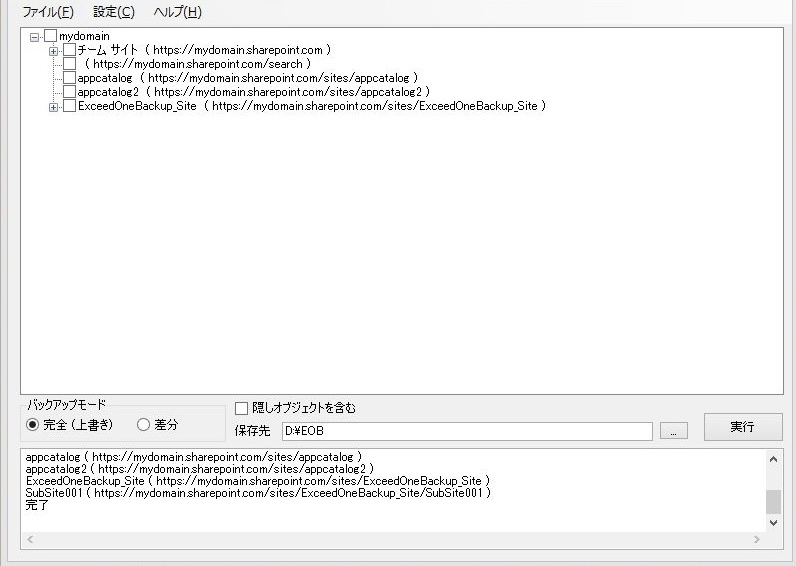
Current screen (ver 2.0.x, Japanese UI). A modernized interface (new design, progress display) is planned.
In ver 2.0.6, now in development, unchanged lists are skipped without being read, and changed lists are read only for the changed items and files. We have confirmed that the result matches a full re-read, item by item and field by field.
| EOB | Microsoft 365 built-in features (recycle bin, version history) | Typical cloud-based backup services | |
|---|---|---|---|
| Where data is stored | On your premises (in-house servers, NAS, PCs) | Inside Microsoft 365 | The provider's cloud |
| Opens without special tools or services | ● (plain files) | — | Restore through the service |
| Kept beyond 93 days after deletion | ● | — (recycle bin up to 93 days) | ● |
| Usable when Microsoft 365 is unreachable | ● | — | Depends on the service |
| Only changes from the second run | ● (2.0.6 in development) | — | Depends on the service |
| Costs do not grow with data volume | ● | Within Microsoft 365 storage | Depends on the service |
| Published prices, payable in yen | ● | — | Often quote-based |
| Japanese interface, manual and support | ● | ● | Depends on the service |
| Restore to SharePoint | In development for ver 2 (easy restore) | Within recycle bin and version history | ● |
Our research (November 2026). Details of cloud-based services vary by service.
The standard features of Microsoft 365 do not let you go back to any point, at any time.
Under Microsoft's shared responsibility model, managing your data is the customer's responsibility in every type of cloud service.
Deleted files can be restored from the recycle bin, but after 93 days they are permanently deleted and cannot be recovered.
If a PC is infected with ransomware, or someone overwrites or deletes many files by mistake, the changes are synced straight to the files in SharePoint and OneDrive.
When an account is deleted, that person's OneDrive is also deleted after a retention period (30 days by default). You can back up important files left in OneDrive all at once (Professional Plus).
Some documents, such as records with a legal retention period, require that you can check the information as it was at a given time. With EOB, tasks with separate destinations let you keep backups side by side, for example one per weekday or one per month.
During a network outage or when Microsoft 365 is unreachable, you can keep working with your local backup.
From "keeping files on hand" to a tool that protects, restores and migrates SharePoint as a whole.
Put files and lists saved by EOB back into SharePoint, restoring created and modified dates and authors as closely as possible. Our most requested feature, delivered within ver 2. In the development build, we restored a 5,200-item list in 2 min 17 s (parallel degree 4) and 455 files in about 2 min 40 s, and confirmed that every item matches the original (in-house measurement).
For company-wide use: no limit on installations, maintenance included (upgrade to v3 at no extra cost), priority support and setup assistance. See pricing
Full restore including permissions, migration with pre-migration analysis, permission and sharing review (Copilot readiness), ransomware protection, and backup for all of Microsoft 365. See the roadmap
Large enterprises that want to keep their SharePoint Online and OneDrive data on hand use EOB for scheduled backups and for retrieving individual files.
The Free Edition is available for download right away. Feel free to ask for a trial key that unlocks all features for a limited time (once per company), or for a demo and consultation. The contact form is in Japanese; please write to us in English or Japanese.