← Exceed One Co., Ltd.日本語EnglishTiếng Việt

Features

Back up SharePoint Online and OneDrive data as plain files to your own servers or NAS. From manual backups where you select sites and run, to daily automatic backups with Task Scheduler.

HOW IT WORKS

Select, keep, automate. Your Microsoft 365 data, on hand

Back up SharePoint Online and OneDrive data as plain files to your own servers or NAS. Because the data is kept outside the cloud, it helps you prepare for accidental deletion and ransomware.

☑️

Select

Just pick the sites and OneDrive accounts to back up from the list. Settings can be made per site.

Pick sites
💾

Keep as files

Saved to your servers, NAS or PCs in the same folder structure as the site. Open them as they are, without special software.

Opens as is
⏰

Run automatically

Every night, automatically, with the command-line tool and Task Scheduler. Parallel processing makes it fast, and failures are retried automatically.

Parallel, auto retry
📂

Retrieve and use

Retrieve just the files you need and use them right away. List data and attachments are kept too.

Only what you need
About 61% fasterwith parallel processing (in-house test: 6 min 30 s → 2 min 30 s)
12 filesJust place them and run. No installation
Code signingSigned with our digital signature (2.0.5 and later)

Select sites and back up

After you sign in, the sites in your tenant are shown as a tree. Just check the sites, subsites and folders you want to back up and click "Execute".

  • Folders are created in the same structure as the site. Save to a local drive or a shared folder on the network (such as your file server or NAS)
  • Full (Overwrite): also overwrites files that already exist in the destination
  • Differential: skips files with the same modified date and saves only files that have changed
  • You can choose whether to also save hidden objects (data with SharePoint's hidden attribute)
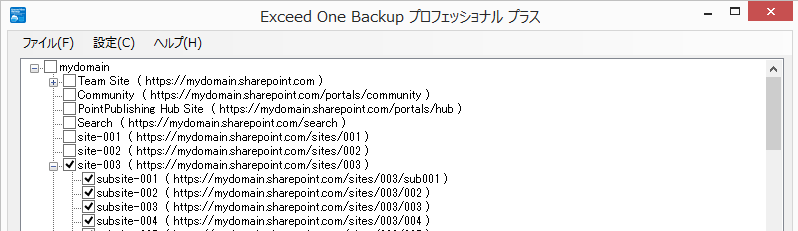
The site tree with the sites and subsites to back up checked

Files, lists and attachments

Not only files in document libraries, but also list data and attachments are saved together.

  • List contents are saved as XML files
  • List attachments, easily forgotten in manual work, are saved too Fixed in 2.0.4
  • Files are saved in the same format as in SharePoint. No special compression or conversion, so you can open them as they are without dedicated software and retrieve only the files you need
  • Supports files larger than 2 GB and paths longer than 260 characters

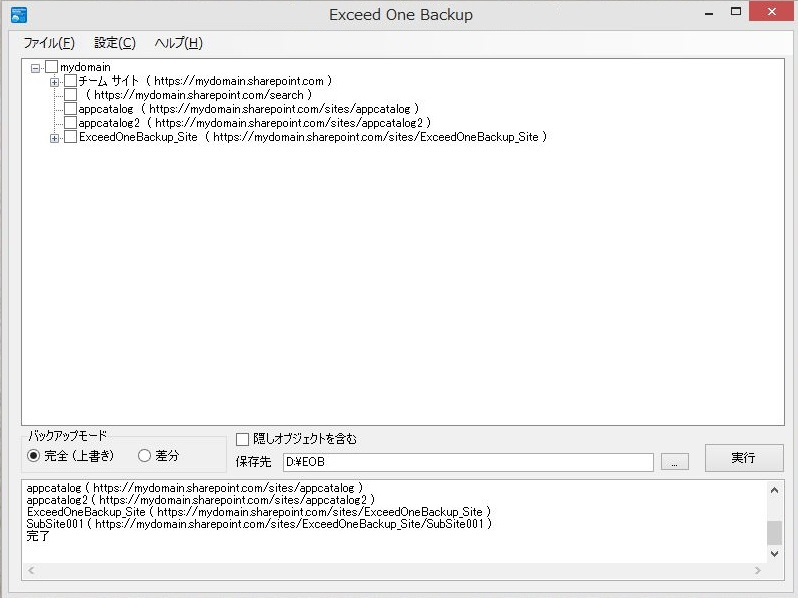
To put files back into SharePoint, upload the retrieved files to the site. A restore-to-SharePoint feature is under consideration on the Roadmap.

The main window after a backup. The execution log shows the saved sites

OneDrive and Microsoft 365 groups

With the Professional Plus Edition, you can back up personal sites (OneDrive for Business) and group sites (Microsoft 365 groups) in addition to general sites.

  • Save important files that are kept only in someone's personal OneDrive
  • You can also select users and back up only the OneDrive accounts you need

For differences between editions, see Pricing & requirements.

SiteProfessionalProfessional Plus
General sites●●
Personal sites (OneDrive for Business)—●
Group sites (Microsoft 365 groups)—●

Scheduled automatic backup from the command line

Save the sites and backup method selected in the window to a "batch config file", and run it with the command-line tool (EOBCmd.exe). Register it in Windows Task Scheduler to automate daily or weekly backups.

  • Automatic mode (/m): backs up all sites that exist at run time. Newly created sites are included automatically
  • You can specify where to write the log file (/l)
  • Register separate tasks with different destinations (/f) to keep backups from different points in time side by side, for example per weekday or per month
Command Prompt
EOBCmd.EXE /c:EOBBatch.xml /f:D:\Backup /l:D:\Backup\Log.txt /m:g
/c:Batch config file
/f:Backup destination folder
/l:Log file name (optional)
/m:Automatic mode (optional) g all general sites p all personal sites o all group sites a general sites + personal sites

p, o and a are available only in Professional Plus. Automatic mode is not available in the Free Edition.

Certificate authentication 2.0.1

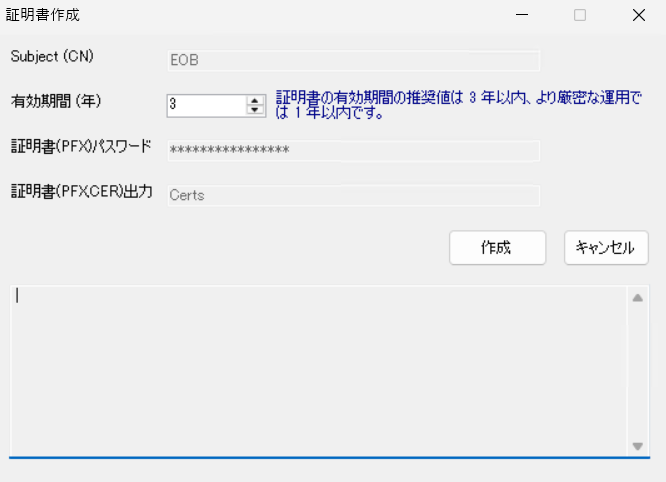
Register an app in Microsoft Entra ID and connect to SharePoint Online with a certificate. Because EOB does not use Azure ACS, which was retired on April 2, 2026, you can keep using it after the retirement.

  • Create the certificate in EOB under "Config" → "Create certificate" (validity period in years)
  • "Site Config" runs a connection test before saving, so you notice configuration mistakes right away
Create certificate window

Faster and more robust 2.0.2–2.0.3

Processing has been reworked so that even sites with a large number of files are backed up to the end without stopping.

  • Choose 1 to 4 parallel downloads (default: 2)
  • Throttling (HTTP 429/503) and temporary network errors are handled by waiting and retrying automatically
  • Only files that still cannot be saved after retries are skipped and recorded in the log; processing continues
  • Longer timeouts so that downloads of large files are not cut off
1 parallel
6 min 30 s
2 parallel
3 min 25 s
4 parallel
2 min 30 s
Site with 3,495 items and 3,449 files (ver 2.0.3, in-house test)
AND MORE

Features for day-to-day operation

📝

Execution log

Progress and error details (type, message and location) are saved in the EOBLogs folder. Old logs can be deleted automatically after a set number of days.

📈

Performance log

Records item counts, elapsed time and the time taken per file, so you can find out what is taking time (optional).

💻

Runs on a PC

No server is needed; it runs on client PCs. It also works on PCs that are not joined to a domain.

📦

No installation, signed

Just extract the ZIP file. Nothing is written to the registry. From 2.0.5, the distribution has 12 files, and EOB.exe and EOBCmd.exe carry our digital signature.

🌏

Japanese and English

Switch the display language from the menu.

🔤

All kinds of file names

File names containing single quotes, hash signs (#) and percent signs (%) can also be backed up.