← Exceed One Co., Ltd.日本語EnglishTiếng Việt

Features

From checking and changing access rights to permission reviews, audits and remediation.

HOW IT WORKS

Find, fix, verify. One tool for managing permissions

See the access rights on your file servers, fix them on the spot, and verify the changes with the audit report. Audits, ransomware defense and cleaning up leavers' permissions all happen in the same screens.

🔍

Find

List the permissions of each folder in Excel. Reverse lookup from accounts and effective access of users are included.

About 40× faster output
🛠️

Fix

In a screen like Explorer, just tick the boxes and click OK. Permissions of deleted and unused accounts can be removed in one go.

Bulk settings
📑

Verify

The audit report compares two sets of permissions and lists what has changed. Use it as material for ISMS, Privacy Mark and internal audits.

Audit report
🔁

Repeat

Run permission output and audits automatically on a schedule with the command line and Task Scheduler. Logs can be kept with names hidden.

Scheduled runs
1,574 s → 40 sPermission output of an entire shared folder (our own measurement)
3 purposesAudits, ransomware defense and cleaning up leavers' permissions
Thousandsof customers
BY PURPOSE

Find features by purpose

🔍

Audits (ISMS, Privacy Mark, internal audits)

Export the list of permissions to Excel for your permission review. Changes since last time are shown in the audit report.
Permission output · Audit report

🛡️

Reviewing permissions against ransomware

Find the folders where Everyone or similar groups have Modify permission, and narrow them down to the people who need it.
Permission output · Setting permissions

👋

Cleaning up permissions of leavers and transfers

Check which folders a user can access, and remove permissions left on deleted or unused accounts.
Effective access · Deleted accounts · Unused accounts

Viewing and setting access rights

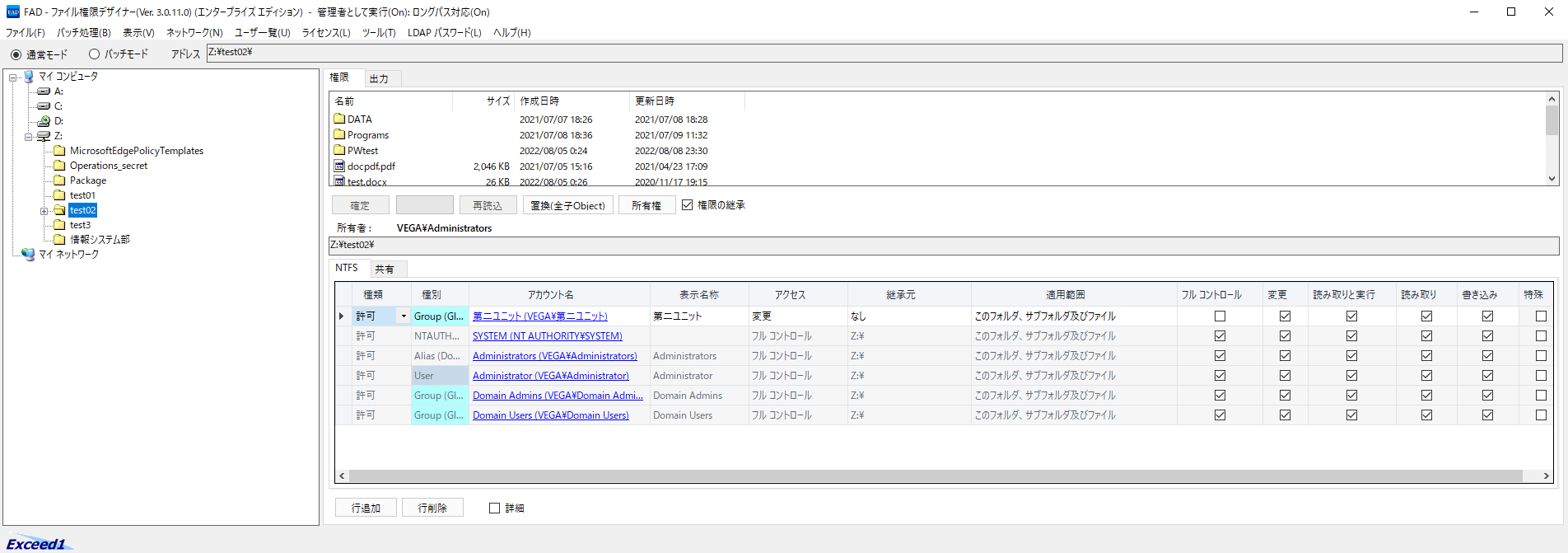
Select a folder in the tree to list its access rights. Tick the boxes and click OK to change them.

  • The order and the "Access" and "Inherited from" columns are the same as in Windows Explorer 3.0.11
  • Basic permissions by default; turn on "Advanced" to view and edit detailed permissions
  • Add and remove accounts, disable inheritance, take ownership
  • Sort the file list; right-click for "Open in Explorer" and "Properties" 3.0.11

The list of access rights

Permission output in Excel format

Exports access rights with the folder hierarchy to Excel (xlsx). Use it as it is for permission reviews and as audit evidence.

  • Up to 1,000,000 rows
  • The "Reverse Lookup (User)" sheet lists, for each account, the folders it has permissions on 3.0.10
  • Much faster output: 1,574 s → 40 s for an entire shared folder (about 40×). Reviews of large file servers take far less time 3.0.9.23
  • Turn "Output inherited" off to output only the places where permissions are set individually, so you see only the rows that matter (example: 2,705 rows → 19 rows) 3.0.12
The main window

Audit report (changes in permissions) 3.0.11

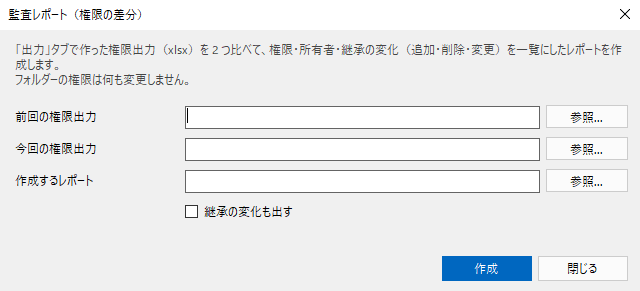
Compares the previous and current permission outputs and lists the changes in permissions, owners, inheritance and folders. Use it for regular checks for ISMS, Privacy Mark and internal audits, and for checking before and after a change.

  • A "Summary" sheet (counts) and a "Changes" sheet (one row per change)
  • Changes that are only inherited are left out, and only the folder where the change started is shown (all rows can also be shown)
  • Create it regularly from the command line (FADCmd /diff)
The audit report window

Example: an audit report comparing last month's and this month's permission outputs

Between last month and this month, inheritance was disabled on the Accounting folder and Domain Users was removed, Mr. Yamada was added to Sales\Customers, and Ms. Suzuki in HR was given broader permissions. Just select the two permission outputs (xlsx) to get the following report.

SummaryChanges
TargetKindTotal
PermissionAdded1
PermissionRemoved1
PermissionChanged2
OwnerChanged1
InheritanceChanged1
Folder / fileAdded1
Total7
  • No. 2–4: Inheritance was disabled on Accounting, so the Read permission of Domain Users that came from the parent is gone (Removed), and the permission of the Accounting group changed from "inherited" to "Set directly".
  • No. 5: Ms. Suzuki's permission was broadened from Read (R) to Modify (M). You can check whether this was intended.
  • Changes that merely passed from a parent folder down to its subfolders are left out, and only the folder where the change started is shown, so the number of rows stays manageable (all rows can also be shown).
SummaryChanges
NoKindTargetFull PathAccountDisplay NamePreviousCurrentGrant
1AddedPermission\\fs01\Shared\Sales\CustomersVEGA\taroTaro YamadaM+1Set directly
2ChangedInheritance\\fs01\Shared\AccountingInheritedNot inherited
3RemovedPermission\\fs01\Shared\AccountingVEGA\Domain UsersDomain Users[R+1]Inherited only
4ChangedPermission\\fs01\Shared\AccountingVEGA\AccountingAccounting[M+1]M+1Set directly
5ChangedPermission\\fs01\Shared\HRVEGA\hanakoHanako SuzukiR+1M+1Set directly
6ChangedOwner\\fs01\Shared\HR\EvaluationsVEGA\AdministratorsVEGA\hanako
7AddedFolder / file\\fs01\Shared\Sales\Contracts

Permission notation: F Full control  M Modify  E Read & execute  R Read  W Write  /  + Allow  - Deny  /  The number is what it applies to (1 this folder, subfolders and files; 0 this folder only; etc.)  /  [ ] Inherited from the parent folder

Effective access of user 3.0.11

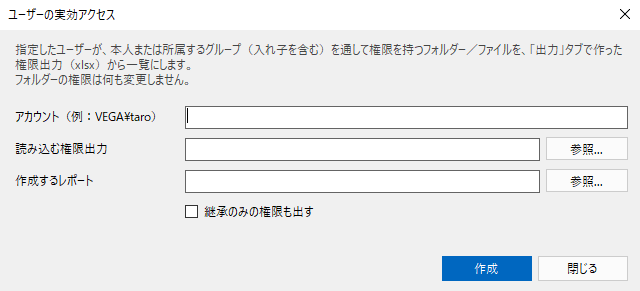
Lists the folders on which the specified user has permissions, either directly or through the groups they belong to (including nested groups). Use it to check the access of leavers and people changing departments.

  • Group membership is read from Active Directory
  • Groups that everyone belongs to, such as Everyone, are also checked
The Effective access of user window

Example: folders that Mr. Yamada (VEGA\taro), who is changing departments, can use

When you specify an account, FAD lists not only the permissions set on the user but also the permissions through the groups they belong to (including nested groups and Everyone). The "Via" column shows which group gives the access.

EffectiveAccessTargetAccounts
NoFull PathTypeVia (account)KindPermissionGrantDeny
1\\fs01\Shared\SalesFolderVEGA\SalesGroupM+1Set directly
2\\fs01\Shared\Sales\CustomersFolderVEGA\taroUserM+1Set directly
3\\fs01\Shared\CompanyFolderEveryoneEveryoneR+1Set directly
4\\fs01\Shared\Accounting\BudgetFolderVEGA\taroUserW-1Set directly○
  • No. 1: He is a member of the Sales group, so he can modify the Sales folder. When he moves, removing him from the group is enough.
  • No. 2: This permission is set directly on Mr. Yamada. It stays even after he is removed from the group, so it has to be removed separately.
  • No. 4: A Deny (-) is set. The "TargetAccounts" sheet lists the user checked and the groups they belong to.

Permission notation: F Full control  M Modify  E Read & execute  R Read  W Write  /  + Allow  - Deny  /  The number is what it applies to (1 this folder, subfolders and files; 0 this folder only; etc.)  /  [ ] Inherited from the parent folder

Deleted accounts (list and remove) 3.0.11

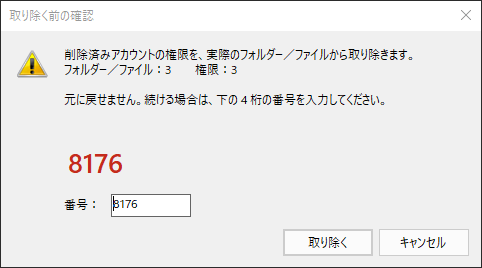
When an account is deleted from AD, for example when someone leaves, its permissions tend to stay on folders as bare SIDs. FAD finds these permissions and owners, lists them, and removes them after you have checked.

  • Checking alone changes nothing. The list is saved in Excel
  • Removal only after you enter a 4-digit number (prevents mistakes)
  • What was removed is saved automatically as a report
  • Safe by design: SIDs of domains that cannot be queried are not removed
The confirmation window before removal

Example: permissions left after deleting the accounts of people who have left

Even after an account is deleted from Active Directory, its permissions stay on folders as SIDs (S-1-5-21-…). FAD finds and lists them, and removes them after you have checked.

DeletedAccounts
NoFull PathTargetSIDStatusPermissionGrantResult
1\\fs01\Shared\OldProjectPermissionS-1-5-21-…-1104DeletedF+1Set directlyRemoved
2\\fs01\Shared\OldProjectOwnerS-1-5-21-…-1104Deleted
3\\fs01\Shared\AccountingPermissionS-1-5-21-…-1105DeletedE+1,W+1Set directlyRemoved
4\\fs01\Shared\SalesPermissionS-1-5-21-…-2210Cannot be confirmed (the domain cannot be queried)M+1Set directly
  • First, click "Check" to create the list (nothing is changed at this point). You can save the list in Excel and use it for review and internal approval.
  • Click "Remove..." and enter the 4-digit number to remove only the directly set permissions whose status is "Deleted". A removal report with a "Result" column is saved automatically (No. 1 and 3).
  • Owners (No. 2) are only listed, not changed. SIDs of domains that cannot be queried (No. 4) are not removed, so nothing is deleted by mistake.

Permission notation: F Full control  M Modify  E Read & execute  R Read  W Write  /  + Allow  - Deny  /  The number is what it applies to (1 this folder, subfolders and files; 0 this folder only; etc.)  /  [ ] Inherited from the parent folder

Unused accounts (check and remove) 3.0.13

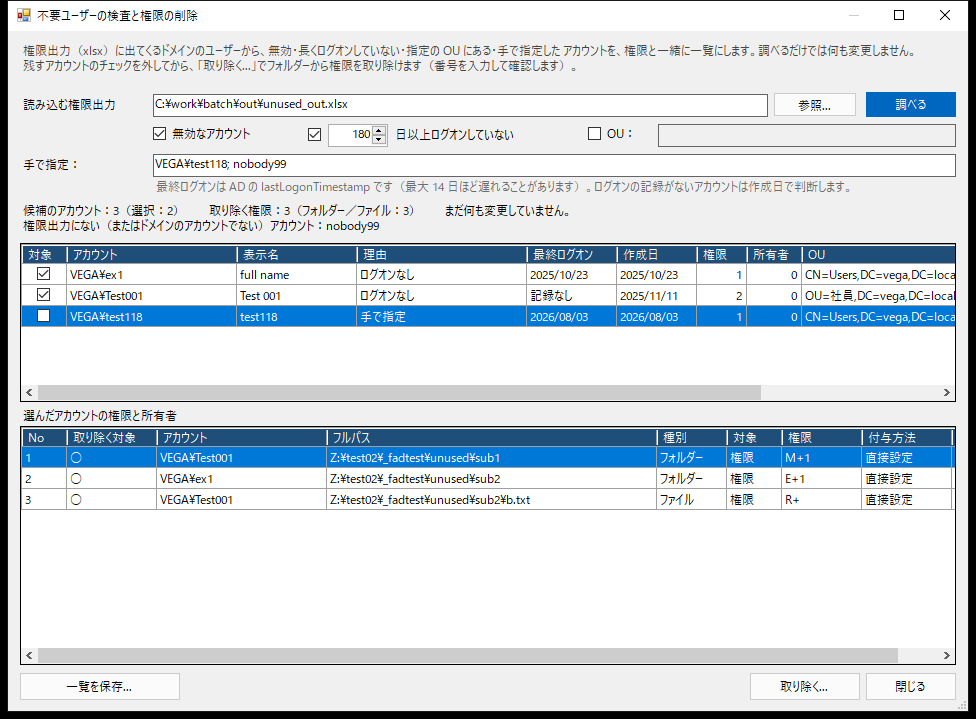
Some accounts still exist in AD but are no longer used. FAD checks AD for disabled accounts, accounts that have not logged on for a long time, and accounts in a specified OU, and lists the permissions left on those accounts. Exclude the accounts you want to keep, check, and then remove.

  • Conditions: disabled, no logon for N days or more (default 180 days), OU, specified by hand
  • Untick candidates to exclude them; specify accounts by hand to add them
  • Removal only after you enter a 4-digit number. A removal report is saved automatically
  • Safe by design: built-in accounts such as Administrator and the user running FAD are never candidates
  • Also for regular checks from the command line (FADCmd /unused)
The Unused accounts (check and remove) window
AND MORE

Features for day-to-day operation

⏱️

Batch mode EE

Records the changes made in the screen, saves them to a setting file, and applies them all later. For bulk changes outside business hours.

⌨️

Command-line execution

Automate permission output, audit reports, effective access and more with FADCmd. The exit code tells your job whether it succeeded.

👥

Group and user list

Lists the groups and users of Active Directory, workgroups and the local PC, and exports them to Excel.

📝

Operation logs

Permission changes are recorded in the event log and in text logs, so you can later check who changed what and when. FAD's logs can also record folder and user names as codes (D0001, U0001, etc.), so you can send them to support with peace of mind 3.0.14

🔗

Shared folder permissions

Shows share permissions in addition to NTFS access rights.

📏

Long path support

Handles deeply nested folders with paths longer than 260 characters.