← Exceed One Co., Ltd.日本語EnglishTiếng Việt

Features

From finding important files without passwords to protecting them in bulk and keeping a record.

HOW IT WORKS

Find, protect, record. Regular audits so nothing is left unprotected

Find important files without passwords without opening them, protect them in bulk on the spot, and log the results. One tool covers everything up to regular file server audits.

🔍

Find

Just select a folder to list which files have passwords. FPC reads the file contents directly, so Office is not required.

Check without Office
🔐

Protect in bulk

Set passwords on files without them, in bulk. Newer formats and PDF use AES-256.

AES-256
📝

Record

Check and set results go to a log, so you know when and which files were audited.

Audit record
🔁

Regular audits

Audit file servers automatically on a schedule with the command line and Task Scheduler.

Automatic audits
192 s → 0.2 sChecking 3,016 files (compared with the previous version, our measurement)
17 extensionsOffice, PDF and ZIP
No Office neededFor checking and for protecting newer formats

Find files without passwords

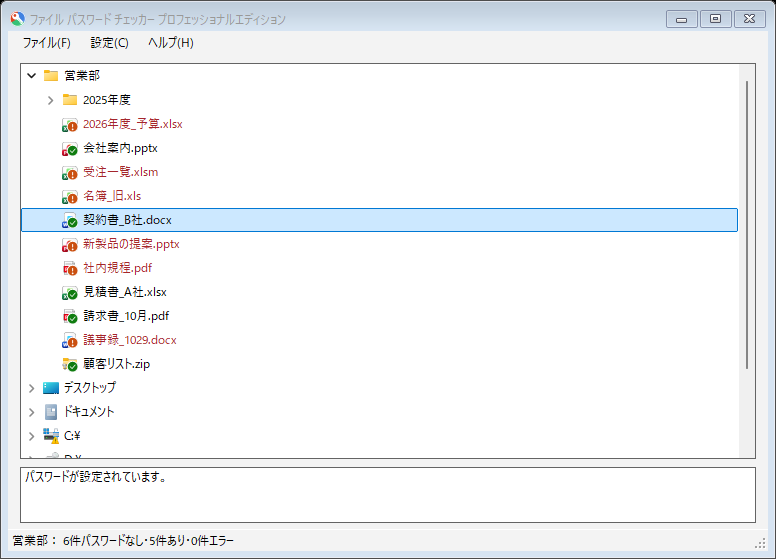
Just click a folder in the tree. FPC lists its files immediately, reads the contents of the Office, PDF and ZIP files directly in the background, and marks each icon to show whether it has a read password (a password to open). There is no need to open the files, and Office is not required. Click a file to see its detailed status at the bottom of the window.

  • Marks: green ✓ has a password, orange ! no password (file name in red), red × error, gray … checking, gray ? not covered by your edition, gray − canceled, lock: cannot be accessed
  • The status bar shows counts (for example "Folder name: n without password, n with, n errors"). While checking, it shows "Checking n / m" and "Cancel", and the window stays responsive
  • Files and folders that cannot be accessed are shown with a lock mark instead of a dialog, and the reason is shown at the bottom of the window
  • Turn on "Settings" → "Check subfolders" to also check lower levels in the background, with separate counts for the folder and its subfolders. Subfolder icons also get ! or ✓ marks
  • Network shared folders can also be added to the tree with "File" → "Add share..." and checked (Professional)
  • When you reopen a folder you closed, it is checked again
The folder tree, with icons showing whether each file has a password

Protect the files you find, on the spot

Double-click a file without a password (or right-click and choose "Set password...") and enter a password. You can protect it with a read password without opening the file yourself.

  • Newer formats (xlsx, xlsm, xlsb, docx, docm, pptx, ppsx) are encrypted with AES-256, the same as Office, without using Office. Older formats (xls, doc, ppt, pps) are protected using Office
  • PDFs are encrypted with AES-256 (the same password is set as the open password and the permissions password). PDFs with editing or printing restrictions or digital signatures are not changed
  • Before setting a password, the original file is copied as "file name.fbk01" (can be switched in the settings)
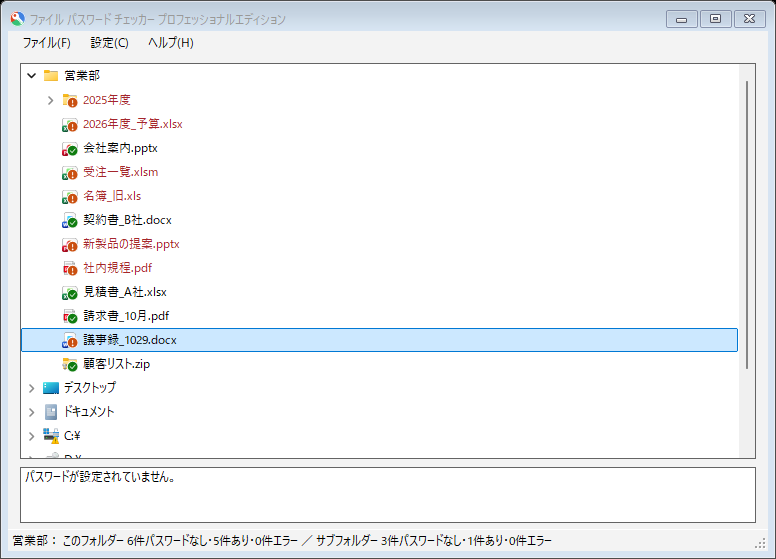
  • When the password is set successfully, the icon changes to "has a password"
  • Passwords cannot be set on files that have a write password
The window after setting a password

Audit file servers regularly and protect in bulk (command line)

With FPCCmd.exe, you can check everything in a folder at once, or give it a list of files to protect with passwords in bulk. Run it regularly with Task Scheduler to keep checking that unprotected files are not increasing, and keep the results in a log (Professional).

  • The same password for all files (/P), or a different password for each file (written in the list)
  • Results are logged one line per file. You can choose quote delimiters and whether to output to the screen
  • Files are checked in parallel. Checking 3,016 files went from 192 seconds in the previous version (1.4.2) to 0.2 seconds (measured on our PC). The output format and order are unchanged
  • If a NAS blocks rapid reads, you can set a wait time per file (BatchIntervalTime; when set, files are checked one at a time)
FPCCmd.exe
/C:folderFolder to check in bulk
/S:fileList of files to protect in bulk (file name,password)
/P:passwordPassword to set on all files
/B:ON|OFFBackup before setting (default ON)
/L:fileLog file
/SM /NC /DQNo screen output / no comments / enclose in quotes
FILE TYPES

Supported files

TypeExtensionsCheckSet
Excelxlsx, xlsm, xlsb, xls, xlb, xlw●●
Worddocx, docm, doc●●
PowerPointpptx, pptm, ppsx, ppsm, ppt, pps●●
PDFpdf●●
ZIPzip●—

Checking reads the file contents directly, so Office is not required (only files that cannot be read directly are checked with Office). Microsoft Office is needed only to set passwords on older formats (xls, doc, ppt, pps) and when you choose "Open with Office to check". Setting passwords on ZIP files is planned for the next version (Roadmap).

STATUS

Statuses

Results are shown with icons and messages on screen, and with two-character codes in the command-line log.

StatusLogMeaning
Has passwordPRA read password is set.
Password setSCA read password was set.
No passwordUPNo read password is set (including files with only a write password, and PDFs with only editing or printing restrictions).
Forced stop / errorERProcessing was stopped by a timeout, or an error occurred (files that cannot be accessed, shown with a lock mark on screen, are also ER in the log).
No OfficeCPOffice is not installed or failed to initialize (only when "Open with Office to check" is selected, or for files that require Office).
Edition limitLMNot covered by your edition.
Not supported--The file is not a supported type.
AND MORE

Features that support daily operation

💾

Backup before setting

Before setting a password, FPC makes a numbered copy (file name.fbk01, .fbk02 …) in the same folder.

📝

Logs

FPC keeps a log of operations and check results (FPCLog.txt) and a record of passwords being set (FPCChangeLog.txt). By default, passwords you set are not recorded. File names and other names can also be masked with aliases such as D0001 and F0001.xlsx.

🧭

Choice of detection method

In "Settings" → "Detection method", choose between reading files directly (fast, no Office needed; recommended) and the traditional method of opening them with Office.

⏱️

Timeout

If Office stops responding on a file, FPC gives up after a set time (default 30 seconds) and moves on.

🖥️

High-DPI displays

Clear fonts and flat buttons; text stays sharp even at 125% and 150% scaling.

📦

No installation

Just extract the ZIP and place the files. Nothing is written to the registry.

💻

Run from a PC

Check files on file servers from a client PC. Administrator rights are not required.

✍️

Code signing

The executables are code-signed.

🧩

32-bit and 64-bit Office

When Office is used, both 32-bit and 64-bit Office are supported.

Detection of files containing personal information, Excel reports and more are described in the roadmap (they are not in the current version).See the roadmap